

Watched users: M3U import to Smarters, TiviMate & more (clean switch)
A “clean switch” is the structured migration from one IPTV app setup to another by importing an M3U playlist (and EPG) into a compatible player, while keeping device settings stable and minimizing downtime.
What you need before you switch (checklist)
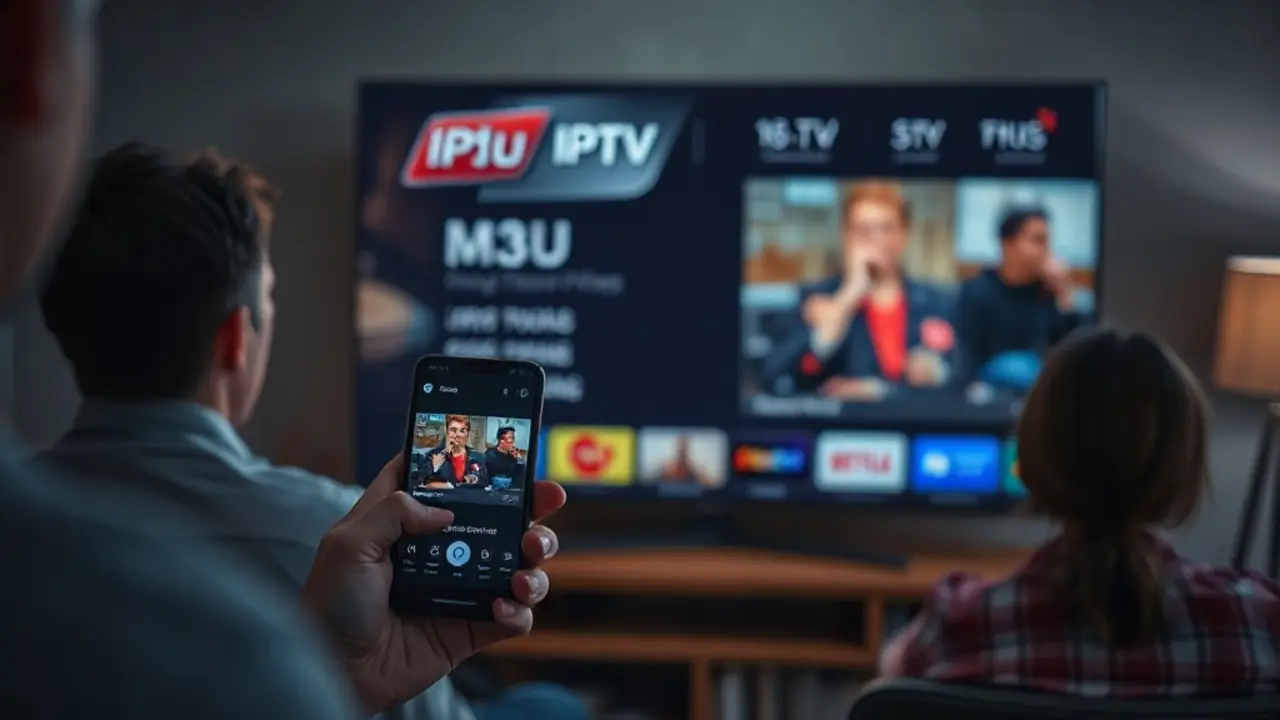
A smooth migration starts with collecting the right inputs. Most IPTV players can load channels via M3U URL (recommended) or an M3U file (local import). If you want guide data, you’ll also need an EPG URL (XMLTV).
Prepare this checklist:
- M3U URL (preferred) or M3U file: includes your live channels and often VOD entries.
- EPG (XMLTV) URL: enables program guide, now/next, and schedule details.
- Device type: Android TV/Fire TV, Android phone/tablet, iOS, Windows/macOS. Your best player choice depends on the platform.
- Network basics: stable Wi‑Fi (5 GHz if possible) or Ethernet, and the ability to reboot router/device if needed.
- Credentials format: some apps accept “Xtream Codes” login, but for an M3U-based migration you primarily need the playlist URL and (optionally) EPG.
Tip: If your previous app kept everything “hidden” behind a code, request the actual playlist details (M3U/EPG) from your provider. Without those, no player can reliably import your channel list.
Import M3U into IPTV Smarters (Android TV, mobile, many devices)
IPTV Smarters is popular because it’s straightforward and available across multiple device types. For Watched users migrating to an M3U workflow, the goal is to add a playlist once and then refine playback settings.
Steps (M3U URL):
- Install and open the app, then choose Add User or Add Playlist.
- Select Load Your Playlist (M3U URL).
- Enter a Playlist Name (for example: “Main TV”).
- Paste your M3U URL. If you also have an EPG link, add the EPG URL when the app prompts for it (or in settings after import).
- Confirm, then wait for the playlist to download and index.
Recommended settings to stabilize playback:
- Player engine: if you see stutter, try switching between available internal/external player options.
- Buffer size: a slightly higher buffer can help on busy Wi‑Fi networks.
- Stream format: if the app lets you choose, test the default first; only change if you see consistent incompatibilities.
If categories look messy (too many groups), check whether your provider offers a cleaner playlist variant or a separate “live-only” playlist. Keeping the first setup simple makes troubleshooting much easier.
Import M3U into TiviMate (best fit for Android TV / Fire TV)
TiviMate is widely used on Android TV-style devices because it’s optimized for remote control navigation and a TV-like interface. The migration approach is simple: add your playlist, then add EPG, then verify channels and update intervals.
Steps (M3U URL):
- Open TiviMate and go to Add Playlist.
- Choose M3U Playlist and select Enter URL.
- Paste the M3U URL and confirm.
- After channels load, go to Settings → EPG and add your EPG URL.
- Run an EPG update and confirm guide data appears for common channels.
Stability and maintenance tips:
- Playlist update interval: set a reasonable refresh interval so changes in channel lists sync automatically without constant reloading.
- EPG update schedule: daily updates are usually enough; more frequent updates rarely improve accuracy.
- Audio/subtitle issues: test an alternative audio track if available; some channels provide multiple tracks.
- Sorting: hide unused groups early to keep browsing fast and clean.
If a channel plays in one app but not in another, it often comes down to player decoding differences or stream format handling. Testing the same channel on two players can quickly isolate whether the issue is the device/app or the source stream.
Other players that support M3U (quick mapping by device)
If Smarters or TiviMate aren’t the right fit for your device, many alternatives can still run an M3U-based setup. The core requirement remains the same: M3U URL (and ideally EPG XMLTV).
Common device-to-player mapping:
- Android TV / Fire TV: TV-focused players with EPG support and remote-friendly navigation (often easiest for living-room use).
- Android mobile/tablet: lightweight IPTV players that support background/foreground behavior and mobile playback controls.
- iOS / iPadOS: M3U-capable players that allow adding playlists via URL and support basic EPG.
- Windows/macOS: desktop players that can open network streams, import M3U, and optionally overlay EPG via plugins or built-in guide features.
Selection criteria (keep it practical):
- EPG support (XMLTV) and how reliably it refreshes.
- Category management (hide groups, favorites, custom sorting).
- Player compatibility with your device’s decoding capabilities.
- Update behavior: does the app keep your playlist intact after updates?
For households that want a predictable TV experience, we typically recommend a TV-first player on the main screen and a mobile-friendly player as a backup. This reduces downtime if one device is updating or temporarily unstable.
Troubleshooting: when channels don’t load, EPG is empty, or buffering happens
Most migration failures are caused by small, fixable issues: a wrong character in the URL, an app caching old data, or a network problem that only shows up on one device. Use a structured checklist instead of changing everything at once.
If the playlist won’t load:
- Re-check the M3U URL for missing characters, spaces, or line breaks.
- Try loading the playlist on a second device/app to confirm whether the URL works.
- Clear the app cache or remove/re-add the playlist to force a fresh index.
If EPG is blank:
- Confirm you entered the correct EPG XMLTV URL (not the M3U link again).
- Trigger a manual EPG update and wait for completion (some guides are large).
- Check channel-to-EPG mapping settings if the app supports it (sometimes IDs need matching).
If buffering increases:
- Prefer Ethernet or 5 GHz Wi‑Fi; reboot router and device.
- Test at off-peak times to separate local network issues from external congestion.
- Reduce simultaneous streams in the household and close background downloads.
- Try an alternative player engine inside the app (when available).
A clean switch is successful when you can (1) reload the playlist without errors, (2) see consistent EPG updates, and (3) play several channels back-to-back without needing frequent restarts.
A stable alternative setup: keep it simple, then scale
If your previous service disruption created uncertainty, the most reliable approach is to standardize your setup: one primary player, one backup player, and a single source of playlist truth (M3U + EPG). Once that works, you can refine favorites, categories, and multi-room usage.
Our baseline recommendation for stability:
- One main TV device (Android TV/Fire TV preferred for living-room use) with a TV-optimized player.
- One backup device (phone/tablet) with a second M3U-capable player for quick testing.
- Central notes: store your M3U and EPG details securely so you can re-add them after reinstall or device replacement.
At VenneTV we focus on delivering a large, consistent library that works well with standard IPTV players: 7000+ live channels and 18000+ movies, with service operations established since 2018. The goal is predictable playback across devices without requiring special apps or fragile workflows.
When you’re ready, we can also help you pick the best player for your device type and confirm what to enter (playlist name, M3U URL, EPG URL) so you spend less time experimenting and more time watching.